 ScholarStudio
Feedback Refinery
This tool converts spoken supervisor feedback into clear, actionable written comments.
Comment history
Each document-processing run is saved separately. Reopen earlier comments and analyses, remove unwanted records, and inspect changes in individual rubric dimensions.
Checking sign-in status…
Saved document runs
No saved runs loaded.
No document runs have been saved yet. Load comments from a Google Doc to create the first record.
Overall-feedback trends
Each chart follows one feedback-set dimension across comparable completed analyses. Original and transformed comments, rubric revisions and scoring scales are shown separately.
Run the overall feedback rubric on at least one saved document to begin the trend view.
Getting started with Feedback Refinery
How Feedback Refinery works
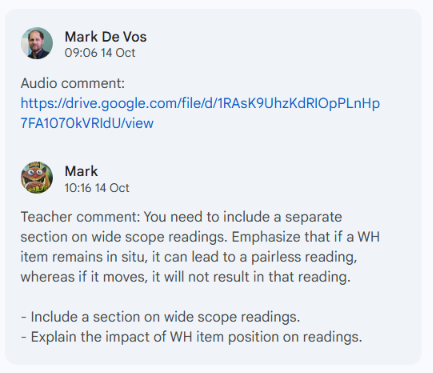
Feedback Refinery lets you record spoken feedback and attach it to comments in Google Docs. Your recordings are saved to your own Google Drive, and a link to each recording appears in the relevant comment. You control the sharing permissions for these files.
You can use Feedback Refinery in two ways:
- Use the Chrome extension to leave audio feedback.
- Combine the extension with the ScholarStudio web interface to refine your spoken comments into clear, structured written feedback that accompanies the recordings.
To get started, you will need to allow Feedback Refinery to:
- Use your microphone.
- Save recordings to Google Drive.
Before you begin: check that Feedback Refinery is ready
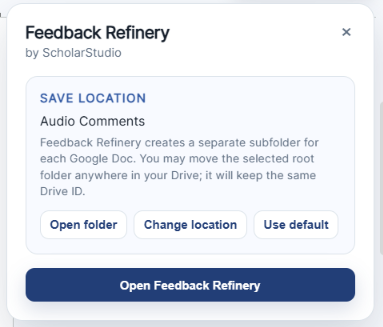
Open the Google document you want to comment on. If the extension is running, you should see the Feedback Refinery button at the top right of the document.

Click this button to open Feedback Refinery. The information panel shows whether it is connected to a location in Google Drive where it can save your recordings. If it is not connected, follow the prompts to connect it and grant the requested permissions.
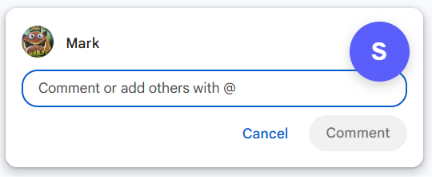
When you add a comment in Google Docs, you should also see the Feedback Refinery icon on the comment tile.
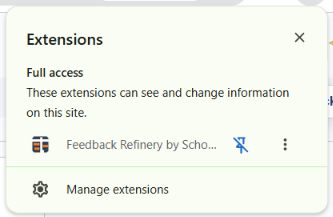
You can also find Feedback Refinery by clicking the Extensions icon at the top right of Chrome.
Level 1: Add audio feedback to Google Docs
1. Add the explanatory note
Create a comment in Google Docs, then click the circular “S” icon on the comment tile.
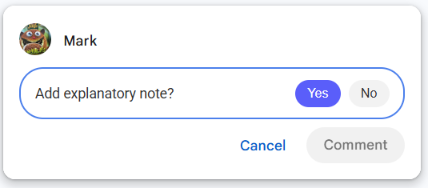
The first time you use Feedback Refinery in a document, it will prompt you to add an explanatory note. This tells the reader that you are using Feedback Refinery and explains how to access your feedback.
2. Record your feedback
The next time you open a comment, you will see a Record button. Click it to begin.
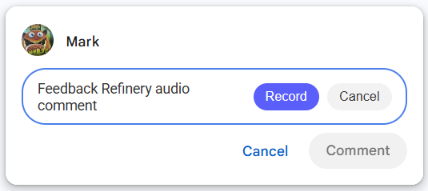
If Chrome asks for permission to use your microphone, allow it. Once recording begins, speak your feedback.
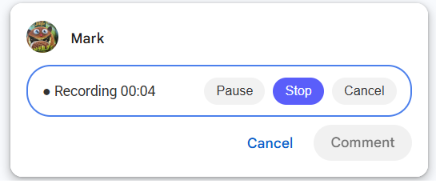
When you have finished speaking, click “Attach Audio” to save the recording and add its link to the comment.
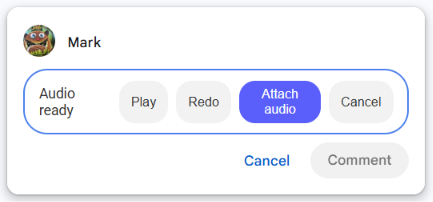
3. Listen to your feedback
With Feedback Refinery installed, click anywhere on the comment tile to open an audio player inside it. You can then play back your recording.
The Chrome extension is free to use on its own. If you would also like to provide a structured written version of your feedback, continue to Level 2.
Level 2: Turn spoken comments into clear, actionable written feedback
This step is optional. The Feedback Refinery web interface helps you:
- Transcribe your audio recordings.
- Refine your spoken comments into concise written feedback.
- Organise the main points and summarise them in bullet points.
The written feedback complements your audio. Your reader can listen to the explanation in your own voice and use the accompanying text to identify the main points and what to work on next.
1. Open the Feedback Refinery web interface
Open the Feedback Refinery panel in Google Docs, then click “Open Feedback Refinery”.
Transcribing and transforming comments uses paid credits. If you do not yet have access, you will be prompted to purchase an introductory set of credits.
2. Connect to Google Drive
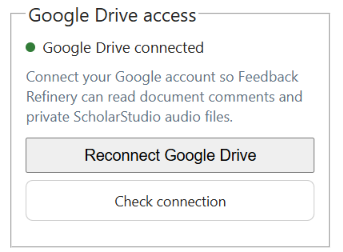
If this is your first visit, you may need to connect the web interface to Google Drive.
- Grant the requested permissions so that Feedback Refinery can access the document and its comments.
- If the connection is missing or has expired, use the buttons shown to connect or reconnect.
3. Allow your recordings to be transcribed
Feedback Refinery scans your document for comments and transcribes the audio recordings. The comments and their transcriptions appear in separate tiles.
Transcription may take several minutes, especially if you have recorded many comments.
Spoken feedback naturally includes pauses, false starts, repetition, and extended explanations. These can help convey your meaning and tone in the recording, but a written companion makes the main points easier to revisit.
4. Transform your comments
Once transcription is complete, scroll to the bottom of the page and click “Transform comments”.

Feedback Refinery turns the transcriptions into more structured written feedback, organising the points you raised and adding bullet-point summaries.
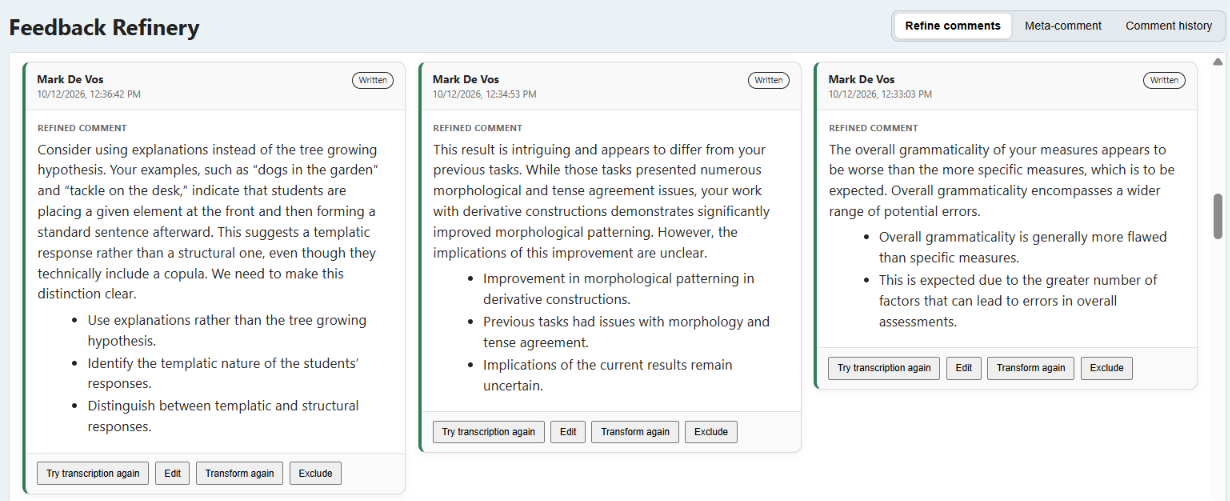
5. Review and write your feedback back to the document
Read the transformed comments before sending them back. Check that they:
- Preserve your intended meaning.
- Retain your emphasis and any qualifications.
- Accurately reflect the feedback you want to give.
Correct anything that needs changing. When you are satisfied, scroll to the bottom of the page and click “Write comments back”.

The written feedback is added to the comments in your Google document, alongside the existing audio links. Your reader can then listen to your explanation and refer to the written feedback as they revise.
Getting the most out of Feedback Refinery
1. Make the most of spoken feedback
Give yourself room to explain. An audio comment does not need to be as concise as a written one.
Imagine that the student is sitting in front of you. In conversation, you would usually do more than identify an error: you might explain your concern, give an example, consider an alternative, or reassure the student that they are on the right track. Audio gives you space to do this.
Depending on the passage you are discussing, you could:
- Give context: identify the passage and explain how it relates to the student’s argument or the purpose of the task.
- State your main point: let the student know early what you want them to notice.
- Describe the issue: explain what is unclear, missing, inaccurate, or worth developing.
- Explain why it matters: show how the issue affects the reasoning, evidence, organisation, or reader’s understanding.
- Describe your response as a reader: for example, “At this point, I expected an explanation of how these two claims connect.”
- Give an example: illustrate what you mean, especially when the advice might otherwise sound abstract.
- Suggest a concrete action: explain what the student should reconsider, check, expand, or revise.
- Explore alternatives: describe another way of approaching the problem and why it might help.
- Ask a reflective question: invite the student to explain a choice or think through its consequences.
- Connect to a broader principle: help the student recognise something they can apply elsewhere in their work.
- Indicate priority: distinguish a central issue from a minor correction or an optional suggestion.
- Offer reassurance: acknowledge difficulty, progress, or a promising idea that needs further development.
- Point to further information: suggest a relevant reading, reference, example, or section of the course material.
- Re-emphasise your main point: finish by reminding the student what you most want them to take from the comment.
You do not need to include all of these in every recording. Use what helps you explain the particular point.
Aim for a full explanation with a manageable focus
A fuller explanation is often more useful than terse commentary. The audio carries your reasoning, tone, and encouragement; the written companion makes the main points easier to locate and revisit.
If a comment runs beyond two or three minutes, consider whether it would work better as two separate comments, each addressing a distinct issue. A ten-minute recording covering several unrelated points can be difficult for a student to navigate when revising.
2. Remember to give positive feedback
Tell students what they have done well, as well as what needs attention. Positive feedback helps them recognise choices they should retain and use again.
Be specific. You might identify:
- A passage you enjoyed reading and what made it engaging.
- A clear explanation of a difficult concept.
- An example or piece of evidence that supports the argument well.
- A thoughtful analytical choice.
- An improvement on earlier work.
- A successful approach that could help strengthen another section.
Explain why something works. “This example makes the distinction clear because…” gives the student more to learn from than “Good example” alone.
3. Use different prompts for audio and written comments
Your spoken and written comments may need different treatment. Audio often contains fuller explanations, examples, and repetition, while written comments tend to be shorter.
You may therefore want to apply one transformation prompt to your audio comments and another to your written comments. For example:
- For audio: “Create a concise written companion to my spoken feedback. Preserve the main explanation and end with a bullet-point summary.”
- For written comments: “Make my comments easier to follow while preserving their meaning, technical terminology, and level of detail.”
You do not need to transform every comment. By default, Feedback Refinery transforms your audio comments and leaves your written comments unchanged.
4. Customise your transformation prompts
The transformation prompt tells Feedback Refinery what you want it to do with your comments. Experiment with instructions that suit your students and the task.
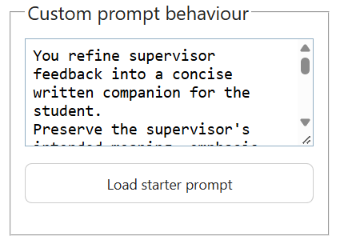
Here are some ideas to try:
- Add a summary: “End each comment with a short bullet-point summary of its main points.”
- Simplify the language: “Rephrase my feedback in language a high school student could understand. Retain essential technical terms and explain them briefly.”
- Translate your comments: “Translate my feedback into isiXhosa, preserving its meaning and tone.”
- Add a bilingual summary: “Keep my feedback in English and add a short summary in isiXhosa.”
- Identify next steps: “End with a checklist of actions I have asked the student to take. Do not add tasks I have not suggested.”
- Separate explanation from action: “Organise each comment into two parts: ‘Explanation’ and ‘What to do next’, where both are present in my feedback.”
- Preserve reflective questions: “Keep my questions as questions for the student to consider. Do not answer them on the student’s behalf.”
- Preserve qualifications: “Keep the distinction between a required correction, a suggestion, and a possibility to explore.”
You can combine instructions, but start with a few clear priorities and review the results. Ask Feedback Refinery to preserve your meaning and avoid introducing new claims, criticisms, or requirements.
For translations, check the result yourself or ask someone who knows the language to review it, particularly where specialist terminology is involved.
5. Make feedback a conversation
Audio comments are not just for supervisors. Students can also freely install the Feedback Refinery Chrome extension and record their own responses to your feedback.
Invite students to use audio responses to:
- Ask for clarification about a comment.
- Explain the reasoning behind a choice they made.
- Discuss how they intend to approach a revision.
- Explore an alternative interpretation or solution.
- Identify something they are still finding difficult.
This creates space for the back-and-forth discussion that would normally happen in a supervision meeting. Your feedback can become the start of a conversation, with opportunities to clarify meaning and work through ideas together.
The Feedback Refinery web interface can transform students’ comments too, providing a written companion to their spoken responses.
6. Reflect on your own feedback with the Meta-comment tab
The Meta-comment tab helps you evaluate the feedback you give. It comes with a preloaded rubric that examines your comments and offers suggestions for improving them.
Use it to consider questions such as:
- Have I explained my concerns clearly?
- Have I given the student enough guidance to act on my feedback?
- Have I recognised strengths as well as identified problems?
- Do my comments invite the student to think, question, and make decisions?
- Is my feedback appropriate to the student’s level and the purpose of the task?
Tailor the rubric to your teaching
The preloaded rubric is a starting point. You will get more useful feedback by designing a rubric suited to your supervisory style, your discipline, and the level of the students you are working with.
For example, a rubric for introductory coursework might emphasise clear explanations and manageable next steps. A rubric for doctoral supervision might give greater attention to analytical depth, disciplinary argument, and the student’s independence.
You can import your own rubric in CSV or JSON format. Choose criteria that reflect what you want your feedback to achieve, and describe what good practice looks like for each criterion.
Use the evaluation as a prompt for reflection
Read the evaluation alongside your original comments. Consider where its observations are useful, where they miss the context, and what you might change.
You do not need to adopt every suggestion. The purpose is to support critical reflection on your feedback and help you make deliberate choices about how you guide your students.
7. Keep realistic expectations
Feedback Refinery can help you provide fuller spoken feedback and a useful written companion, but it can still make mistakes. The quality of the recording, the clarity of your explanation, and the instructions in your prompt all influence the result.
Before writing comments back to the document, check that the transformed text preserves your meaning, emphasis, and intended advice. Correct any errors, especially those that could change what the student understands or does next.
Your explanation and judgement remain the substance of the feedback. Feedback Refinery helps you present them in forms the student can listen to, read, and revisit.